
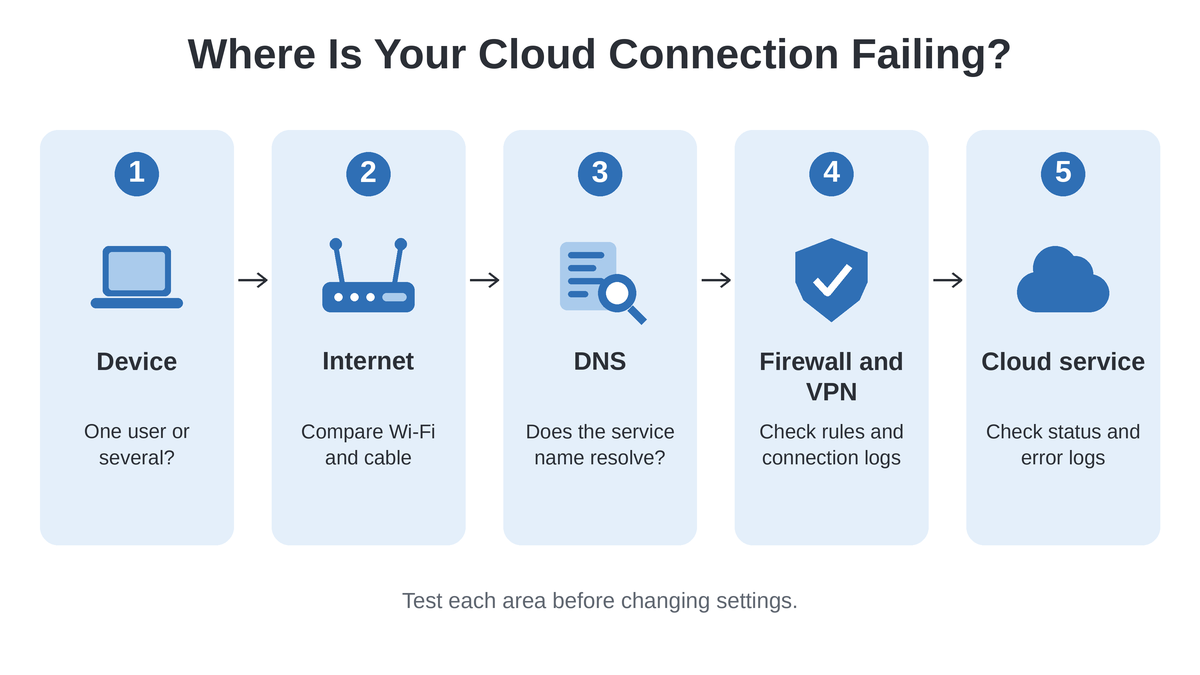
Cloud connection issues can interrupt daily work, making it difficult to upload files, open shared documents, or use business applications. When the connection keeps dropping, employees may need to reconnect several times or repeat tasks they have already completed. The problem could come from a weak internet connection, DNS errors, firewall settings, VPN issues, or the cloud service itself. Finding out whether the issue affects one person or the whole team can help identify the cause. This article explains how to fix common cloud connection problems and prevent them from happening again.
Table of Contents
Why Do Cloud Connections Keep Dropping?
A cloud connection may stop working even when other websites open without any problem. The cause could be the Wi-Fi network, DNS settings, firewall restrictions, a VPN, or a problem with the cloud provider. Checking these areas one by one helps identify where the connection is failing and what needs to be fixed.
- Unstable internet connection: Weak Wi-Fi signals, heavy network traffic, or an internet service interruption can prevent data from reaching the cloud service.
- Routing problems: Network routes direct data to its destination. Incorrect routes or overlapping IP addresses can stop devices from reaching cloud applications.
- Firewall and timeout settings: A firewall may block the traffic an application needs, while some network devices close connections after a period of inactivity.
- DNS errors: The Domain Name System (DNS) converts a service name into an IP address. If the lookup fails, the application may not be able to connect.
- VPN problems: A VPN may disconnect because of network interruptions, incorrect settings, or authentication issues.
- Cloud service outages: Sometimes the service provider experiences an outage, so the problem is outside the company’s own network.
Each cause requires a different response, so changing settings without checking the source may create further problems.
How to Troubleshoot Cloud Connection Drops
The best way to find the cause is to check one area at a time, starting with the affected device and internet connection. The following steps help identify where the connection fails before any network settings are changed.
1. Check Who Is Affected
First, find out whether the problem affects one computer, several employees in the same office, or users in different locations. Check whether other websites and cloud applications are working, and note the time of each disconnection along with any error messages.
If the cloud app stops working on one computer, check its Wi-Fi and network settings. If it stops working on many computers at once, check the office network or cloud service.
2. Test the Internet Connection
Check whether the internet works normally on other websites and applications. If possible, connect the affected computer using an Ethernet cable to see whether the problem continues without Wi-Fi.
IT staff can use the ping command to check response times and possible packet loss. The traceroute command, known as tracert on Windows, shows the network path taken by traffic and may help identify where delays or failures occur. Some devices block these tests, so missing replies do not always mean the connection has failed.
3. Check DNS and Application Access
Try running the command nslookup or dig in the command line to check whether a cloud service’s address is resolvable or not. In the former case, it is required to ensure that the DNS server is correctly configured, while in the latter, it is necessary to make sure that the network is set up properly. Apart from that, one should check for error messages in the browser or the application.
4. Review Firewall, NAT, and VPN Settings
A firewall may stop a cloud connection, especially when it has the wrong settings or the connection is inactive for a while.
If the VPN keeps cutting out, ask the network team to check its logs and look for login or network problems. Understanding routing and network troubleshooting concepts helps IT staff investigate connection problems across office and cloud networks
5. Check the Cloud Provider and System Logs
Check the cloud provider’s website to see if the service is down. If it is working, look at the logs from the time the connection failed.
After making a fix, open the app or upload a file again. If it works without dropping the connection, the fix may have worked.
How to Identify the Cause of a Dropped Connection
The way a connection fails can provide useful clues, although one symptom does not always confirm the cause. Comparing the problem with test results and system logs can help narrow down which part of the connection needs attention.
| What Happens | Possible Reason | What to Check |
| One computer disconnects | Device or local network problem | Test another computer and check Wi-Fi |
| Connection fails after inactivity | Timeout setting | Review application and network logs |
| Service name cannot be found | DNS problem | Test the DNS lookup |
| VPN keeps disconnecting | VPN or network issue | Check VPN logs and connection settings |
| Users in several locations lose the same service | Cloud outage or shared network problem | Check provider status and system logs |
| Large uploads fail repeatedly | Network congestion or application limits | Check upload errors, connection stability, and service limits |
The timing of the problem can also help. For example, a connection that fails during a large upload may point to network congestion or an application limit, while a problem that starts after a configuration change may require a review of the updated settings.
How to Prevent Cloud Connections from Dropping Again
Keep a note of when the connection drops and check the network settings whenever changes are made. IT teams should also check the VPN from time to time to catch problems before they happen again.
Network monitoring can show whether packet loss, delays, or repeated disconnections occur at particular times. VPN software and network devices should be kept up to date, while timeout settings should match the needs of the applications in use. Businesses that depend on cloud access can also test a backup internet connection and confirm that staff know how to report connection problems. Teams can also use technical learning resources from SterlingNext to support their understanding of networking concepts
Note the cause of the disconnection and the fix that worked. If the problem happens again, the IT team can check these notes instead of starting the tests from the beginning.
Conclusion
Cloud connection problems can start with a slow internet connection, DNS errors, VPN issues, or a fault in the cloud service. Checking these one at a time makes it easier to find what went wrong. Once a fix is applied, test the connection again and check the logs if the problem continues. Keeping a record of past issues can also help the IT team deal with similar problems faster next time. Regular monitoring and a clear troubleshooting process can help reduce interruptions and keep everyday work running with fewer delays.